
From Monday 30 November 2026, you will need to approve your connection in a mobile app as part of mandatory two-factor authentication for the university VPN. Most users will also need to update their sign-in details in their VPN settings. The UP Computer Centre is making this change to protect the university network and its services from unauthorised access.
The VPN gives you secure access to the university network when you are off campus, for example from home or while travelling. It lets you use resources and services such as subscription databases and electronic journals, shared network drives, content management systems and SAP. For details and instructions, see the VPN section of the UP Wiki.
Two-factor authentication means confirming your identity in two ways when you connect. First, enter your username and password. Then approve the connection request in the Microsoft Authenticator app on your phone. If someone gets hold of your password, they would still need approval from your phone to connect. Using two or more different authentication factors is known as multi-factor authentication (MFA).
What is changing and how to connect
You can connect to the university VPN using either of these two addresses.
- Server 158.194.254.162
- Until now, you used a separate password for VPN and eduroam, which could differ from your UP Portal or Windows password. From 30 November 2026, use the same password as for the UP Portal.
- From 30 November 2026, use your Portal ID as your username, without the @upol.cz suffix.
- Keep your existing server address, pre-shared key and other settings. If you have saved your old password in the VPN settings, replace it with your UP Portal password and remove @upol.cz from your username.
- If you have yet to set up two-factor authentication for university services such as email, follow the setup instructions below.
- Server 158.194.254.166. This server went offline in 2025 and is now back in service with two-factor authentication. If you already connect through this server, keep using your current setup. The same sign-in rules apply to both servers.
For instructions on how to set up or update these details on Windows, macOS, Android or iPhone, see the VPN section of the UP Wiki.
Setting up two-factor authentication
If you already use Microsoft Authenticator to approve sign-ins to your university email or the UP Portal, you can use it for the VPN too. If you still need to set it up for your university account, follow the MFA setup instructions in the UP Wiki.
Approve the sign-in request in Microsoft Authenticator (see the example below).
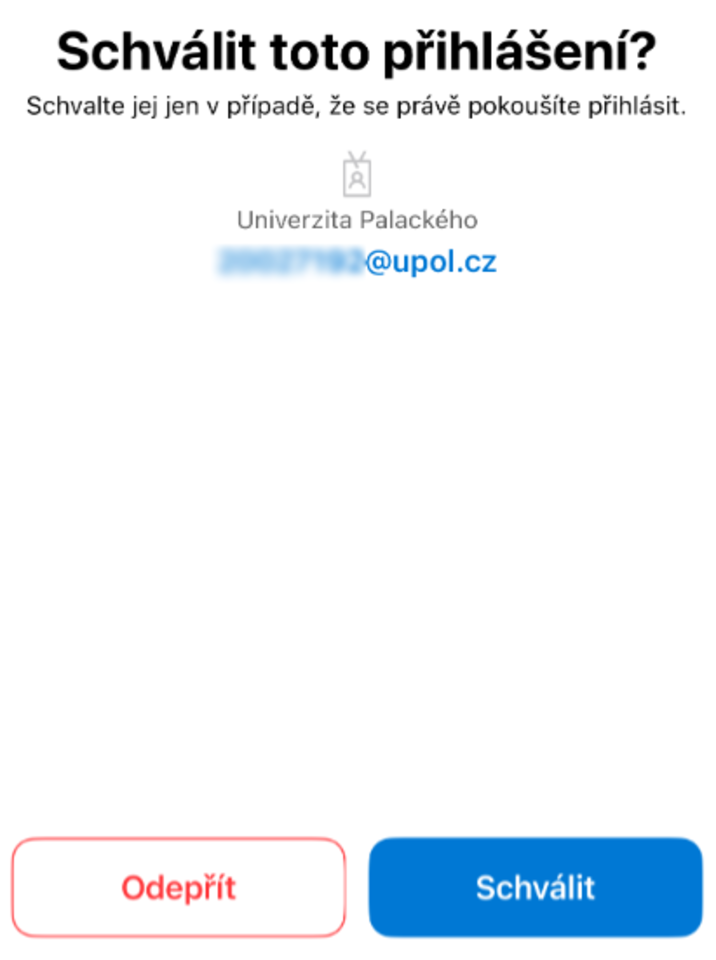
If the connection fails because you entered the wrong password or took too long to approve the request, wait about a minute before trying again.
Deny any VPN approval request you did not initiate. It could be an attempt to use your sign-in details.
Information for external companies
External companies that use this VPN to access devices on the UP Internet of Things (IoT) network will lose that access on 30 November. They can arrange alternative access by submitting an anonymous request through the UP Helpdesk or through the channels they have used before.
Strengthening cybersecurity at Palacký University
The change to VPN sign-in is part of a broader plan to protect the university network and user accounts. The university will gradually introduce two-factor authentication for all students and staff signing in to the UP Portal, university email and other applications that use the university’s single sign-on system. It also plans further measures to reduce the risk of cyberattacks and unauthorised access.
If you have any questions, please submit them via the Helpdesk.